
Save time and upgrade your delivery game with the refreshed edit order admin and streamlined delivery management in Delivery Slots.
Need to add timeslots to existing orders? No problem! Want to create custom timeslots for specific customer orders? We’ve got you covered.
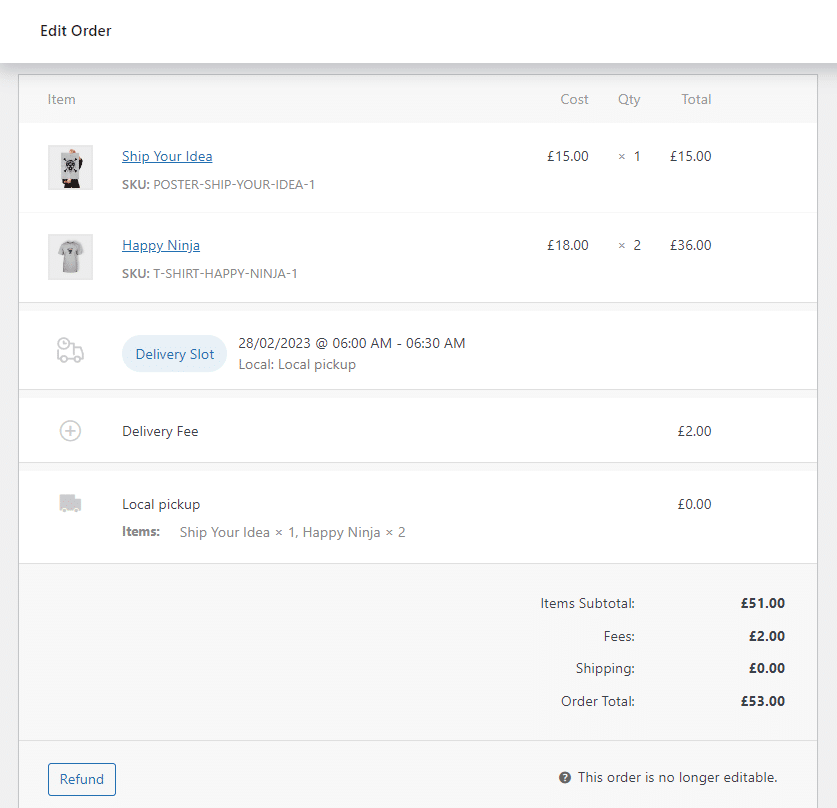
Curious? Here’s what we’ve added to WooCommerce Delivery Slots.
Take a closer look at our delivery slot management improvements
We’re on the road to helping fine-tune delivery management to save you and your staff time. These delivery slot management updates are proof of that. So let’s take a closer look.
A streamlined Edit Order screen
We’ve given the Edit Order screen an upgrade. Instead of an overwhelming and messy order screen, we’ve streamlined it.
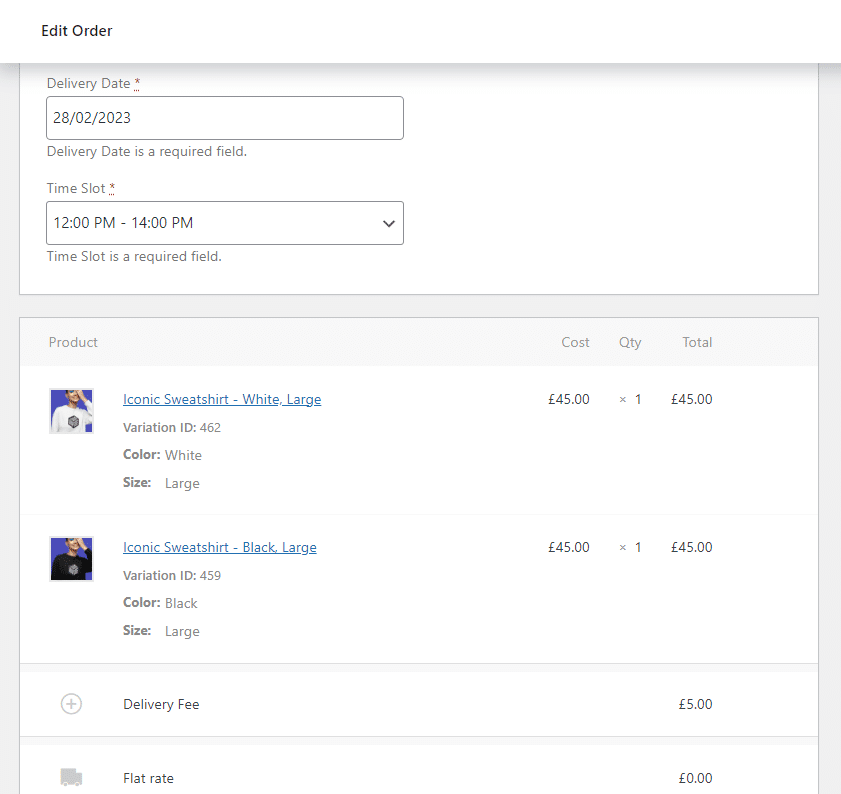
Your store admin and staff can now see everything at a glance. With important order information at the top, followed by order items, and the delivery or pickup slot highlighted, order management is a breeze.
Editing existing delivery and pickup slots is also easier. Hover over the Delivery Slot section, click the pencil icon, and a popup will appear for you to customize.
Add delivery date and time slots to existing orders
Let’s say a customer places an order on your site but forgets to add a time slot for delivery or pickup. Or, you need to create an order directly from the Orders Screen. Up until now, there was no way for you, as a store owner, to go into the Edit Order screen and add one.
With this update, however, you now can! Adding time and date slots to existing orders is straightforward. All you need to do is click on the order you want to edit, select Add item(s), then Add Delivery Slot.
Once clicked, a popup will appear, allowing you to select a delivery or pickup time and date for your customer.
Create custom delivery date and time slots for specific customer orders
Let’s say your delivery drivers need to make one additional stop for a particular customer. Or, you need to allow for a few additional collections in one day. Now, you can override the global time and date slots you have available for each order.
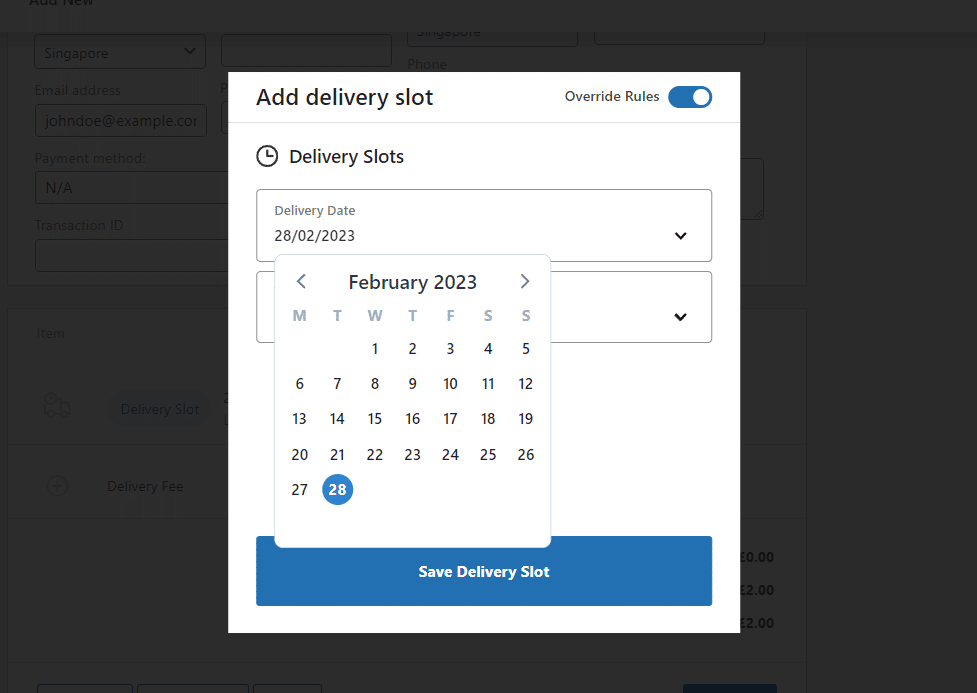
This means you can create custom time and date slots for specific existing orders. To do this, when editing an existing order’s time and date slot, click the Override Rules toggle button and create a custom timeslot instead.
WooCommerce Delivery Slots
Choose a delivery date and time for each order. Add a limit to the number of allowed reservations, restrict time slots to specific delivery methods, and so much more.
How to get WooCommerce Delivery Slots
If you’re already using WooCommerce Delivery Slots, you can update from the WordPress Dashboard as usual.
Want to see how to customize each feature? Here is a step-by-step doc that can help:
If you don’t already have WooCommerce Delivery Slots, upgrade your checkout by getting Delivery Slots for yourself here:
WooCommerce Delivery Slots
Choose a delivery date and time for each order. Add a limit to the number of allowed reservations, restrict time slots to specific delivery methods, and so much more.
What do you think of this exciting new update? Let us know in the comments. If you have questions about WooCommerce Delivery Slots, we’d love to hear from you.